
Distance Learning Attendance Recording
Distance learning has shifted the bulk of attendance recording (including assigning reasons) to teachers since they have contact with the students and know what the assignments are. This is very different from how regular attendance is taken. Previously teachers only marked students Absent or Tardy and then the office managers were responsible for assigning reasons which they received from parents. With distance learning students are no longer Absent or Present; they are Engaged or Unengaged.
Please note: In distance learning every student must be marked Engaged or Unengaged every day. Failure to do this could result in audit exceptions.
Walk Through For Distance Learning Attendance Recording
1. If a student is on task and is to receive credit for the day click Engaged.

2. Click in the main Reason/Activity drop down menu. Choose a reason why the student is Engaged and optionally you can use the minutes and notes fields for additional details. Keep in mind the notes field is for short notes, not paragraphs. Minutes and notes are optional.

The most common reason will be Contact and Work Submitted as it accounts for both a Zoom meeting and each student completing one or more independent assignments
3. If a student is UnEngaged the list of reasons changes:

Distance Learning Attendance Accounting Codes
The CDE changed some of the attendance accounting codes for distance learning starting in the 2020-2021 school year.
Below is their legend:
- 100 – No Participation/Absent;
- 200 – In-Person Instruction;
- 300 – Student or Parent/Guardian Contact;
- 400 – Assigned Work Submitted / Assessment Completed;
- 500 – Other
100 – No Participation/Absent is what we call (based on previous input from auditors) Unengaged (for distance learning) or Absent (for students expected to be physically on campus). Truancy tracking is still required. The chart below shows the Excused and Unexcused reasons for unengaged/absent. Important: Each of the reasons is prefaced with DU (Distance Unengaged) or DE (Distance Engaged). DU (Distance Unengaged) reasons are excused or unexcused.
Reason | Description | CDEcode | Excused? |
DU-Covid | Covid related w/student or Family | 100 | Yes |
DU-Tech | No Device, No Internet, Device Broken | 100 | Yes |
DU-Support | Social/Home/Behavior support needed | 100 | Yes |
DU-Sick | Student confirmed sick | 100 | Yes |
DU-Excused | Doctor Appt, Admin Excused, Personal | 100 | Yes |
DU-NC | No Contact / No Response | 100 | No |
DU-Refuse | Parent/Student refuses to participate | 100 | No |
DU-NoWork | No participation / no work turned in | 100 | No |
200 – In-Person Instruction will be determined by mixed attendance or regular on campus attendance. If you are currently only doing distance learning, you can ignore this for now. If a student is physically present the report will have the 200 box checked. If no attendance is entered, it is calculated as a 'Present'.

300 – Student or Parent/Guardian Contact This typically would be a Zoom meeting or a telephone contact with a parent/guardian. If the teacher chooses the following, the report will have the 300 box checked.
Reason | Description | CDEcode | Excused? |
DE-VidConf | Video Conference/Meeting | 300 |
|
DE-Phone | Telephone Call | 300 |
|
DE-Cont&Work | Contact & Work Submitted | 300 & 400 |
|
400 – Assigned Work Submitted / Assessment Completed This means that the student completed an assignment verified by the teacher.
Reason | Description | CDEcode | Excused? |
DE-Work | Submitted Assignment | 400 |
|
DE-Progress | Demonstrated Progress | 400 |
|
DE-Google | Google Classroom Work | 400 |
|
DE-Cont&Work | Contact & Work Submitted | 300 & 400 |
|
500 – Other No explanation given from CDE. This will be checked if no reason is given for Unengaged attendance.
Reason | Description | CDEcode | Excused? |
DE-Other | Other | 500 |
|
Below is a screen shot of what the CDE wants the Daily Participation log to look like:

The instructions from CDE indicate that multiple boxes can be checked. Not all the combinations make sense, i.e. absent/unengaged (100) cannot be used with any of the others. The most common combination by far will be 300 (Zoom meeting) & 400 (independent assignment turned in). When the reason below is selected, the report will have both the 300 and 400 boxes checked.
What Attendance Reports Should I Use?
Unless an attendance report is for a specific Status or Reason, you should be able to run any report as you normally would. You will need to be aware of the ADA Type, Status, and/or Reason that is being queried. Running the following report display all attendance that is NOT Present ADA Type (That would mean everything but 'Present' and 'DL Engaged'):

If you only want to display 'DL Unengaged', you would set the parameters as follows: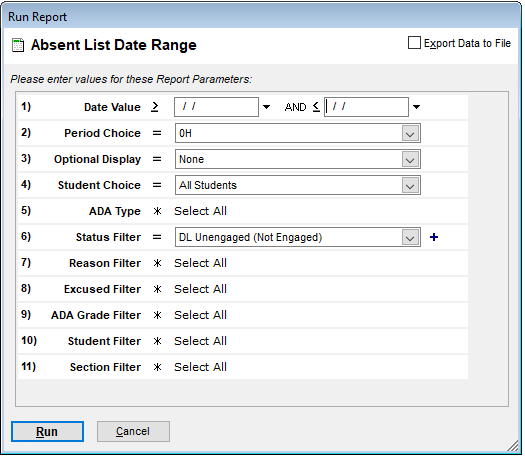
If you want to display results based on the CDE 100, 300, 400, or 500 codes, you will need to select the required reasons.
For example, if you wanted students with 400, you would choose the following: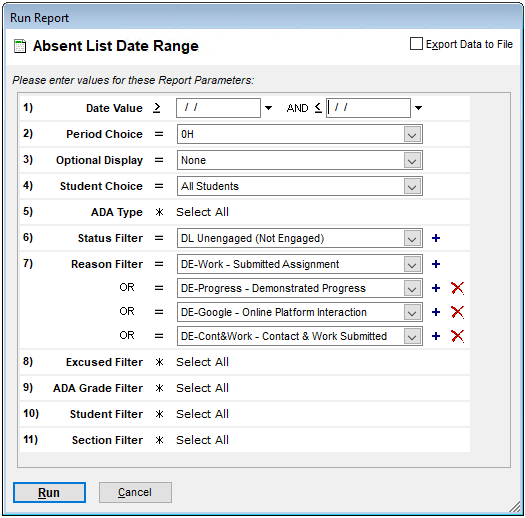
Weekly Engagement Verification Report
The following is an explanation of how to print or view it:
1. In SchoolWise Desktop open the Report Explorer.

2. Open the Attendance Category.

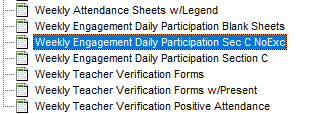
3. Scroll to the bottom of the Attendance category and choose Weekly Engagement Daily Participation Sec C NoExc.
4. Set the date to a Monday and run the report:
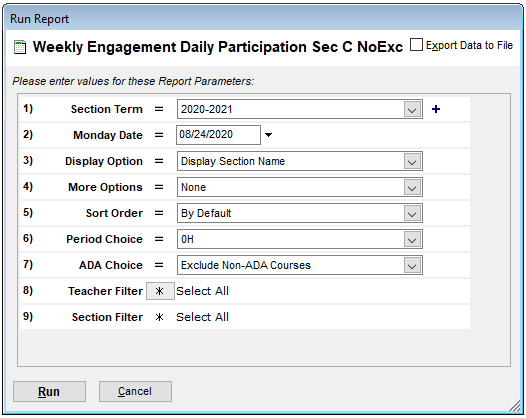
The following is an example of the report.
