How is Attendance Defined?
Attendance in SchoolWise has a Status and a Reason (except the 'Present' Status). All Status types fall within 4 ADA Type categories: Present, Absent, Tardy, Exception. The following chart shows the default Status choices available in SchoolWise: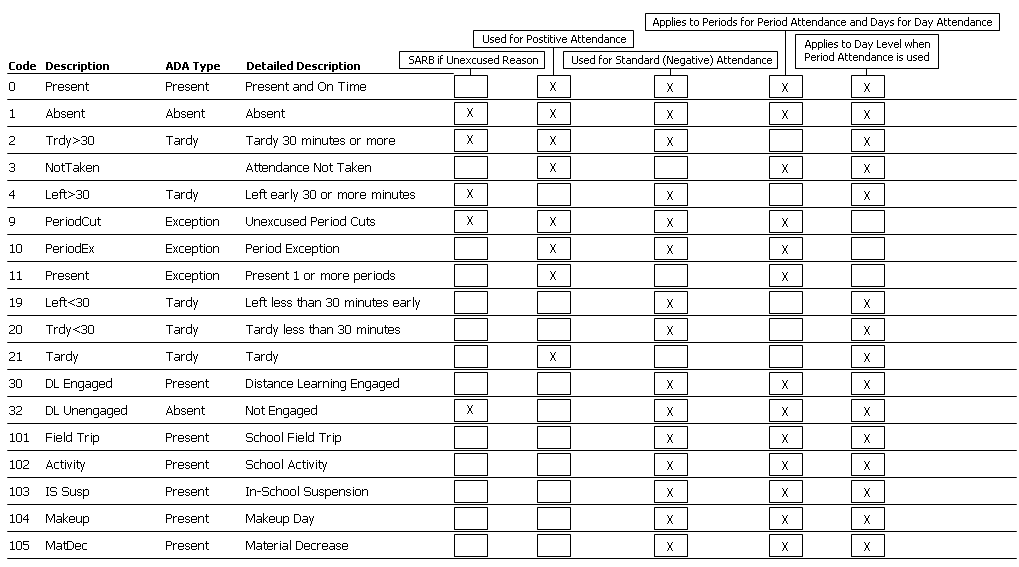
What Attendance Reports Should I Use?
We have many attendance reports available in the Desktop app and Web app. Some reports can be customized with detailed filtering options.
Be aware that ADA reports base the totals off of ADA calculations. Therefore, Days Absent and Days Present are determined by the ADA Type and not by the Status.

What about Truancy?
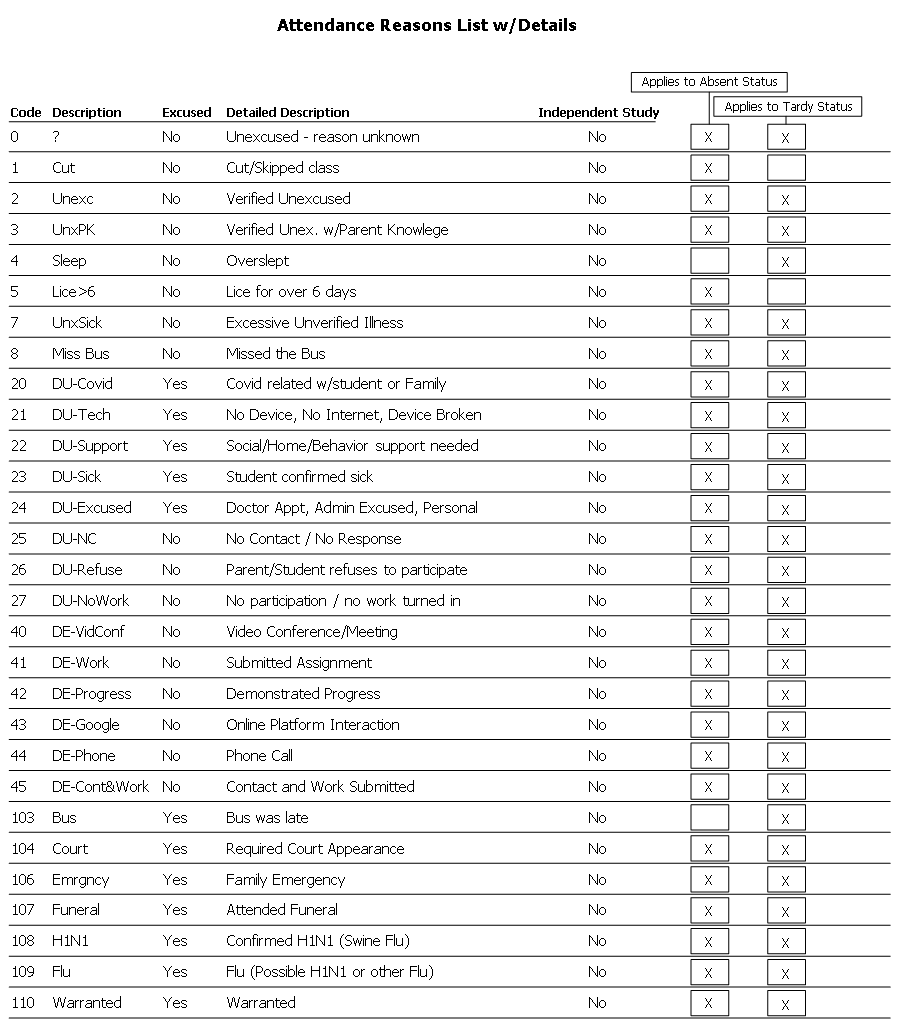
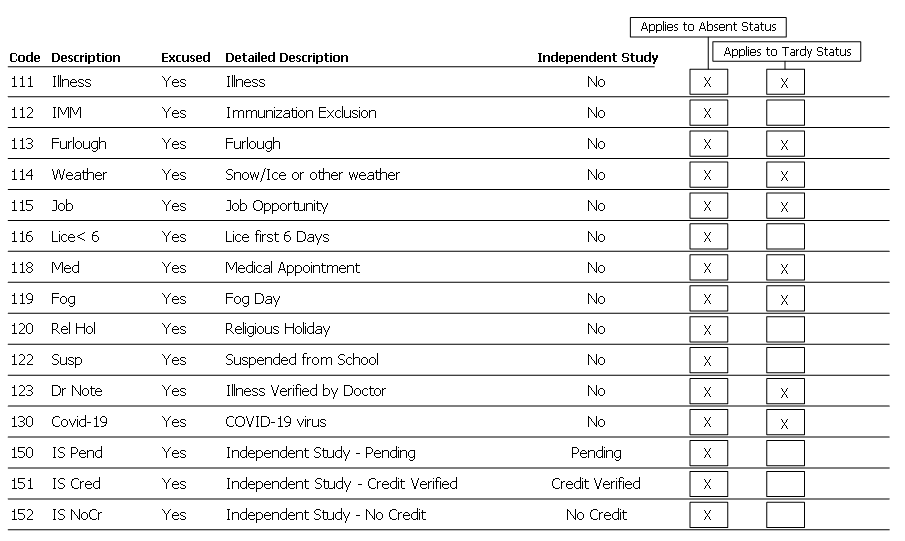
Truancy is determined when a Status is set to 'SARB if unexcused Reason' (see Status chart above) and then the Reason chosen is not excused. The following chart shows the available Reasons:
Truancy Report Suggestions
If you want to see a list of students with 3 or more truancies, you could use 'Attendance Totals By Student' and set the Truany Choice parameter to >= 3.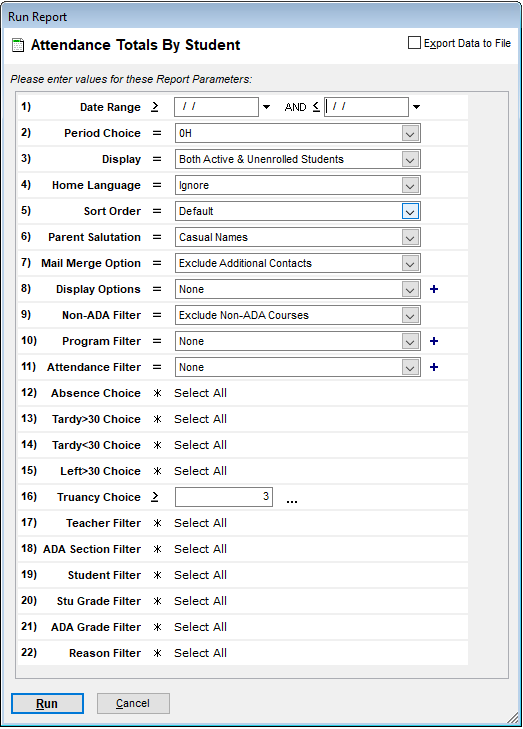
If you want to see the details for the above totals report, use the alternate layout 'Attendance Details By Student'.
Truancy Letter Suggestions
The ‘Attendance’ category in the Desktop Reports Explorer includes many templates for generic attendance/tardy/truancy notification letters.
The ‘Attendance – SARB’ category in the Desktop Reports Explorer includes many templates for generic SARB truancy notification letters.
Custom attendance letters can be handled through mail merge reports. They use a locally saved Word document to include school-specific formatting, wording, letterhead, etc. For a quick mail merge how-to, please see: Using Mail Merge : SchoolWise SIS Knowledge Base.
If you want to create your own letter, you can use the 'Truancy Letter Mail Merge'. 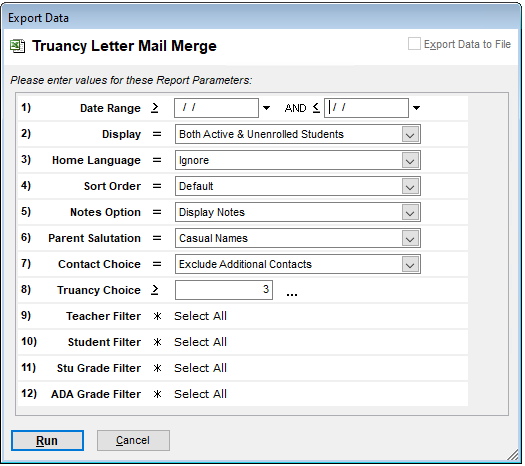
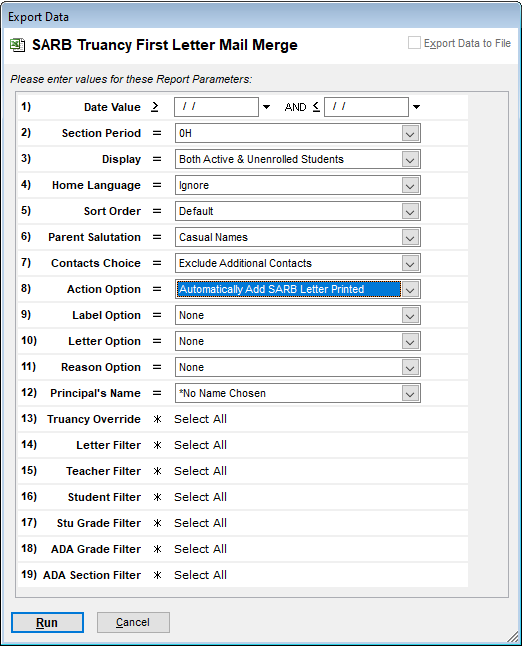
If you want to track when truancy letters have been sent, the SARB letters would be used for that. All the reports in the 'Attendance - SARB' category use a custom student SARB Action to track whether a previous letter has been printed. If that SARB Action does not exist for a student stipulating that a previous letter has been printed, you cannot run a 2nd or 3rd letter. That SARB Action is either added automatically when the report is run and the appropriate Action Option parameter is set (as shown below) or it needs added manually using the student's Action tab.
To create a SARB Action manually, open the Students form and go the Actions tab. Then click on the 'New' page and select the SARB Action Type. Then enter the letter sent, status, and print date.
If you want to track letters sent, you can start by using the 'SARB Truancy First Letter Mail Merge' (Attendance - SARB category). Setting the 'Action Option' parameter to 'Automatically add SARB Action' will fill in a custom Student 'SARB' Action. This SARB letter and SARB Action was designed for 3 letters max, so if you anticipate more than that, it may be better to use 'Truancy Letter Mail Merge' instead.