

Attendance can be recorded in the Desktop Attendance form or in the Web Attendance form.
Attendance Recording Method (Positive vs Negative)
- A course section can utilize either positive attendance recording or negative attendance recording.
- Once a course section has been setup and attendance records have been entered, don’t change the attendance recording method as the attendance records could be corrupted due to the different recording methods.
- The negative attendance recording option is enabled by default for most courses.
- The positive attendance recording option can be enabled in the course section setup.
Negative:
- For negative attendance, a student is considered present by default unless they are marked absent. This type of attendance recording is often used to track attendance in required classes when students are expected to be present (ex. ADA Grade Level (Period 0H) classes). To reduce data entry work and make attendance recording quicker in required classes, only absent attendance records are created; present attendance records are not created.
- When taking attendance, mark students absent (when they are absent) or leave the attendance record blank (not taken) to indicate present. Students without an absent record are assumed to be present.
- The default ‘Present’ status is normally hidden so it is not visible in the desktop attendance form or web attendance form. This is due to the fact that present records don’t exist; only absent records exist.
Positive:
- For positive attendance, a student is considered absent by default unless they are marked present. This type of attendance recording is often used to track attendance in optional classes (ex. Expanded Learning Programs or Attendance Recovery Programs) or when period attendance is used for specific classes. To reduce data entry work and make attendance recording quicker in optional classes, only present attendance records are created; absent attendance records are not created.
- When taking attendance, mark students present (when they are present) or leave the attendance record blank (not taken) to indicate absent. Students without a present record are assumed to be absent.
Recording Attendance in the Desktop app
The SchoolWise Desktop app attendance form can be used to record attendance and edit teacher attendance records. This form is normally used by office staff. This form is also used for locking and unlocking the web attendance forms for the teachers.

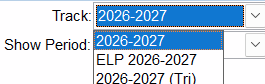
The SchoolWise Desktop app attendance form only show one calendar track at a time. You only see course sections that use the selected calendar track. The regular ADA calendar track (track 1) is normally shown by default. If a course uses an alternate calendar track for different marking periods or the ELP 365-day track, you have to select that alternate calendar track from the pulldown in the top right corner of the form.
Recording Attendance in the Web app
The SchoolWise Web app attendance form can be used to record attendance. Teachers access the web attendance form by logging into their SchoolWise Web Portal and clicking on the Attend clipboard for their homeroom (Day) ADA class (or a specific class if period attendance is being used) as shown below:

The web attendance form interface is based on how the school calendar day type is established in the SchoolWise Desktop.
Regular Day
Below is an example of the possible attendance choices when the calendar is set to Regular Day when students can only be physically on campus. The attendance choice selection is indicated on screen by Abs (Absent) or Pres (Present). Teachers only mark students Absent or Tardy and then the office managers are responsible for assigning reasons in the SchoolWise Desktop which have been verified by parents/guardians. The following chart describes each attendance choice available:

Mixed Learning
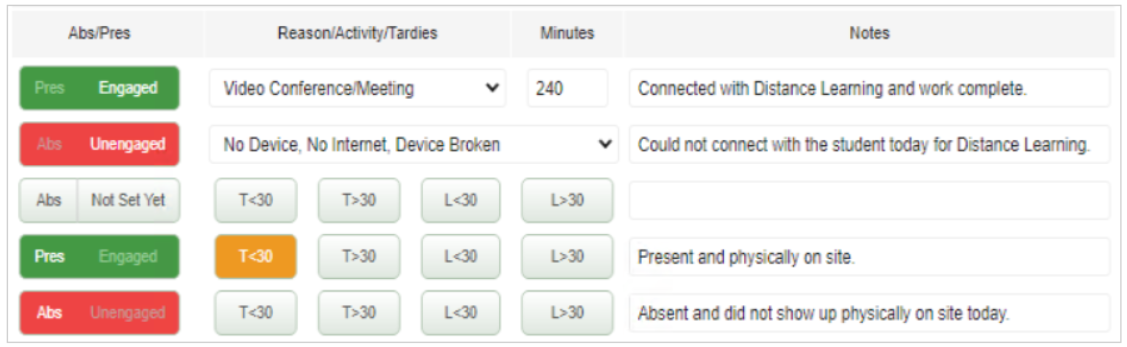
Mixed Learning occurs when some students are on campus and some students are distance learning. In that case attendance is a mixture of Present, Absent, Tardy, Engaged or Unengaged depending on if the student is on campus or at home. There are four possible attendance choices when using the Mixed Learning Calendar Day Type is used. The attendance choice selection is indicated on screen in a Bold White font. In the chart below, the Notes column describes each attendance choice available:
Distance Learning
Engaged or Unengaged are the two attendance choices for Distance Learning. The attendance choice selection is indicated on screen by Engaged or Unengaged.
- By default Not Set Yet means the teacher hasn't taken attendance yet.
- Engaged - means the student is considered Present for the day, participating in the lessons.
- Unengaged means the student did not participate in the day's lessons. There are excused and unexcused reasons.

Note: See below for more information regarding Distance Learning Attendance Features.
Locking Attendance Records
After teachers complete their attendance for the day, they need to indicate that fact by toggling the Attendance Not Taken button to Attendance Taken. Clicking the button reverses its status.


This flags the SchoolWise Desktop attendance system in the office as to the status of teacher attendance. 
School office personnel can click on the Taken button and toggle it four ways:

When it is set to Complete or Needs Review in the office it locks the teachers' attendance form.

It can be unlocked by having office staff set the status back to Not Taken.
Your School Policy determines the conditions that attendance should be locked. You should consider such questions as:
- When should it be locked? Auditors will insist on locking at some point.
- How long do students have to complete assignments?
- When are uncompleted assignments considered Unengaged/Unexcused?
- Since three Unengaged/Unexcused days in one week constitute truancy when is the cut off for determining Engaged, Unengaged/Excused or Unengaged/Unexcused?
In order to comply with auditor requests, the ability for teachers to edit attendance through the web app attendance form is limited to 30 days. To modify attendance records older than that, the desktop app attendance form will need to be used to make those changes.