
SchoolWise Tools For Managing Expanded Learning Programs
- Tracking & Reporting: Enrollment, Attendance, Meals, Discipline records, etc.
- Online Registration can be used to prove a LEA has “offered/provided access” to an Expanded Learning Program.
- Collaboration & Communication can be aided by using our Parent Portal & School Alerts mass notification system.
- Integrated SIS Accounting System & Online Billing-Payments System: Click here for more information if you want to use the SchoolWise accounting system for ELP billing.
Expanded Learning Programs Overview
Expanded Learning Opportunities Program: The Expanded Learning Opportunities Program (ELO-P) provides funding for school enrichment programs for transitional kindergarten through sixth grade. Expanded learning includes before school, after school, summer, or intersession learning programs. ELO-P’s must operate at least 30 non-school days.
Reference:
- https://www.cde.ca.gov/ls/ex/elopinfo.asp
- https://www.cde.ca.gov/ls/ex/elofaq.asp
- https://www.cde.ca.gov/fg/aa/pa/elop.asp
- https://www.cde.ca.gov/fg/fo/profile.asp?id=5868
- https://leginfo.legislature.ca.gov/faces/codes_displaySection.xhtml?sectionNum=46120&lawCode=EDC
After School Education and Safety (ASES) Program: The After School Education and Safety (ASES) Program is the result of the 2002 voter-approved initiative, Proposition 49. This proposition amended California Education Code (EC) Section 8482 to expand and rename the former Before and After School Learning and Safe Neighborhood Partnerships Program.
Reference:
- https://www.cde.ca.gov/ls/ex/asesdescrp.asp
- https://leginfo.legislature.ca.gov/faces/codes_displayText.xhtml?lawCode=EDC&division=1.&title=1.&part=6.&chapter=2.&article=22.5.&op_statues=2001&op_chapter=545)&op_section=4
21st Century Community Learning Centers (CCLC) Program: 21st Century Community Learning Centers (CCLC) includes programs serving elementary and middle/junior high school students, and the After School Safety and Enrichment for Teens (ASSETS) program. The No Child Left Behind Act of 2001 was signed into law in January 2002, authorizing the California Department of Education to administer California's 21st Century Community Learning Centers (CCLC) Program. Education Code sections 8484.7–8484.9 further define California's 21st CCLC Program.
Reference:
CALPADS ELP Tracking Requirement Summary
- The following summary is advisory in nature. It is not intended to cover in detail every statutory requirement and exception, nor should it be relied upon as the authority for instructional time and attendance accounting. Refer to official CDE documentation for reference.
- Refer to CALPADS Update Flash #305 for more information regarding the New Data Collections for Attendance Recovery Program and Expanded Learning Programs.
- Beginning in the 2025-2026 fiscal year, all LEAs are required per Assembly Bill (AB) 1113 to submit and certify data as part of the CALPADS End-of-Year (EOY) submission for student enrollment and participation (attendance) in any of the following Expanded Learning Programs:
- Expanded Learning Opportunities Program (ELO-P).
- The After School Education and Safety (ASES) program.
- 21st Century Community Learning Centers (CCLC), which includes programs serving elementary and middle/junior high school students, and the After School Safety and Enrichment for Teens (ASSETS) program.
- The new CALPADS LEAP file must include ELP enrollment and attendance data for the entire fiscal school year (July 1 - June 30).
- ELP enrollment data is required: ELP - Expanded Learning Programs - Code 194. This LEAP field must be populated for any student that enrolled in an ELP during the fiscal school year (July 1 - June 30) by submitting a signed registration form, and the form is on file. LEAs must submit any student enrolled in an ELP regardless of whether the student actually participated in or attended an ELP.
- ELP attendance data is required: The number of days the student participated in one or more expanded learning programs for the fiscal year (July 1 - June 30), which may be zero if the student enrolled in the program but did not participate. There is no specific amount of time students must attend an ELP on a specific date to be counted as a day of attendance in an ELP program (1 day could be 1 min, 1 hour, 9 hours, or 2 sessions on the same day). This LEAP field is required if LEA Education Program Code = 194.
ELP Form
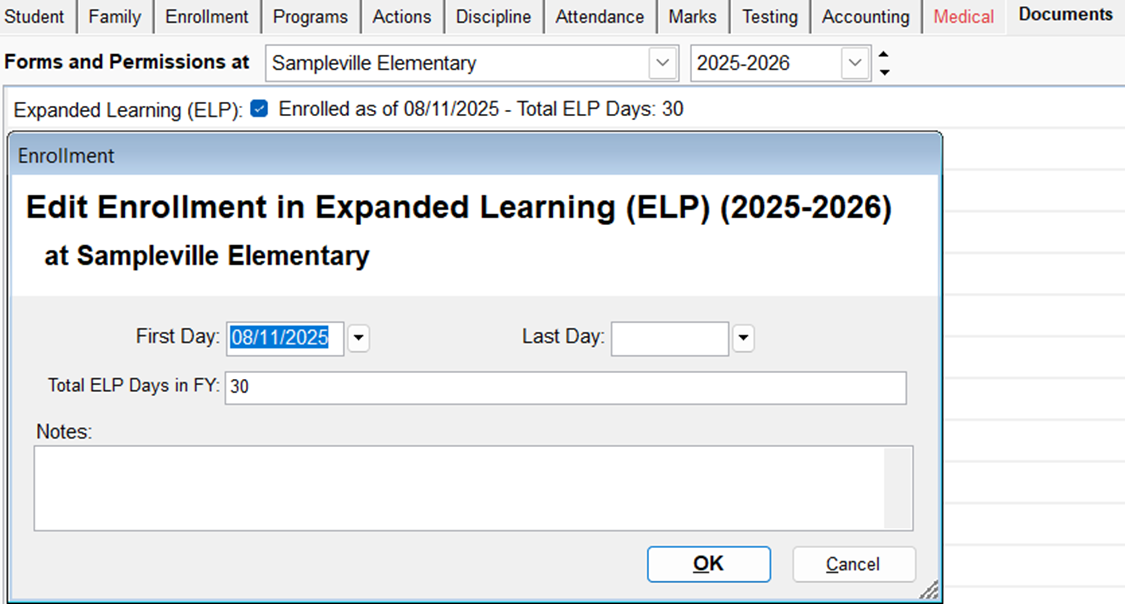
- SchoolWise has created a new Expanded Learning Programs (ELP) form to record program enrollment and total participation days for CALPADS LEAP reporting purposes. The new ELP form is located in the desktop app ‘Students-Documents-Forms’ tab. ELP Form records should be created for the applicable fiscal school year.
- The use of the ELP form is not required if you track all ELP attendance records in SchoolWise per our ELP Attendance Tracking guidelines (Academic Course - Positive Attendance - Period 9). The SchoolWise CALPADS LEAP export will automatically create the ELP program enrollment record using the ELP class enrollment records and automatically capture the total ELP attendance days using the ELP class attendance records. When running the LEAP Export, select the applicable ELP course(s)/section(s) to capture these records.
- The use of the ELP form is required if you don’t track all ELP attendance records in SchoolWise per our ELP Attendance Tracking guidelines. Use the ELP form to create an ELP program enrollment record and record the total ELP attendance days in the fiscal school year. The CALPADS LEAP export will capture the ELP form program enrollment record and the total ELP attendance days entered in the ELP form. When running the LEAP Export, do not select any course(s)/section(s).
- See below for additional ELP attendance tracking and CALPDS LEAP reporting guidance.
ELP Attendance Tracking
Class rosters can be setup in SchoolWise for tracking ELP attendance in the Desktop Attendance form or Web Attendance form. See below for additional course setup guidance.
- Since participation is optional for ELP courses, use positive attendance recording (students are considered absent unless marked present). When creating a class roster for tracking ELP participation time, “Positive Attendance” should be enabled in both the Course Section Defaults tab and in each course section. When taking attendance, mark students present (when present) or leave the attendance record blank (Not Taken) when absent.
- Do not use negative attendance recording for ELP courses. Use of negative attendance recording could result in audit compliance findings. Click here for more details regarding the Attendance Recording Method (Positive vs Negative).
Step1: Determine when ELP will be offered:
- If you plan on operating ELP and/or AR on non-in-session days (non-instructional days), SchoolWise can setup an alternate ELP 365 day extended calendar track so you can take attendance on in-session weekdays and non-in-session dates (holiday, intersession, weekend, etc). Please indicate the specific dates ELP and/or AR will be offered so the ELP day can be enabled in the ELP 365 day extended calendar track.
- If you plan on operating ELP and/or AR only on in-session dates (before school or after school) during the academic school year, the regular academic calendar track can be used to take attendance on in-session weekdays.
Step 2: Determine how ELP participation will be tracked (daily or time tracking).
Option A) Setup ELP daily attendance tracking:
- Daily attendance tracking can be used if you want to record that a student was present on a specific date.
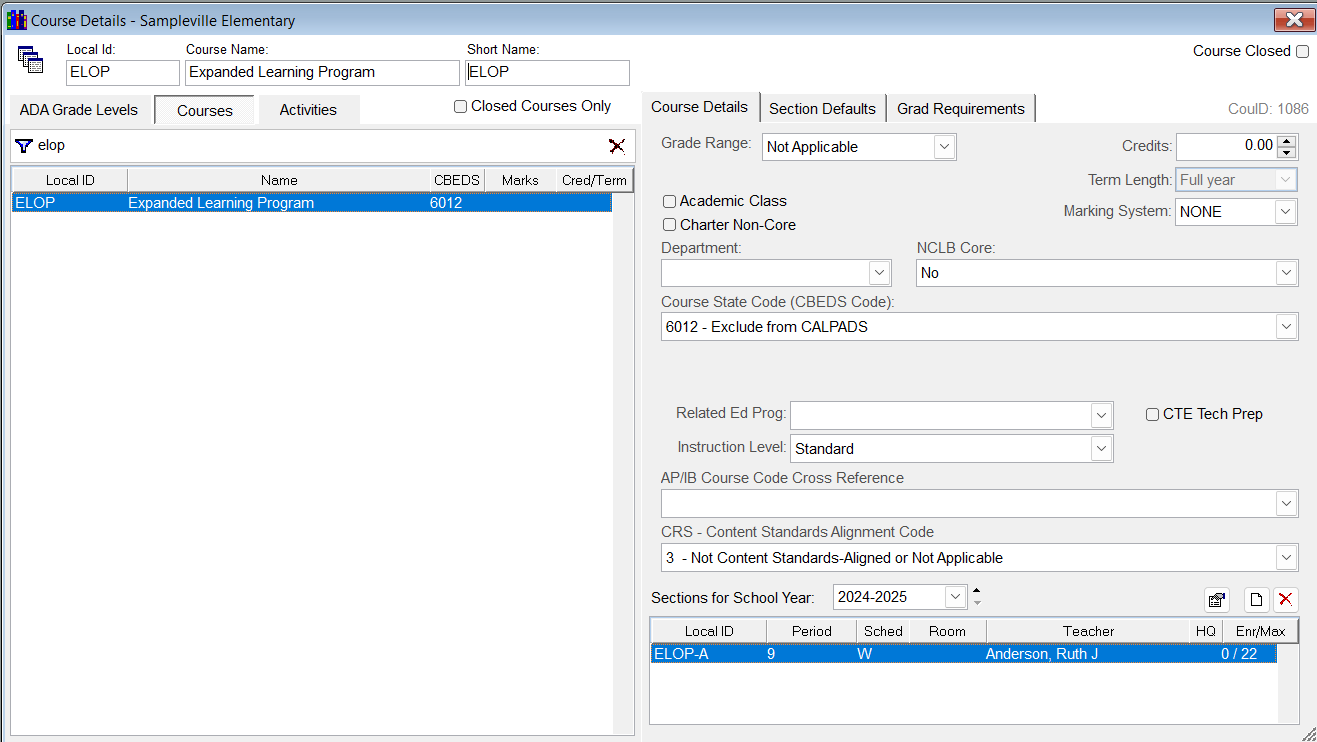
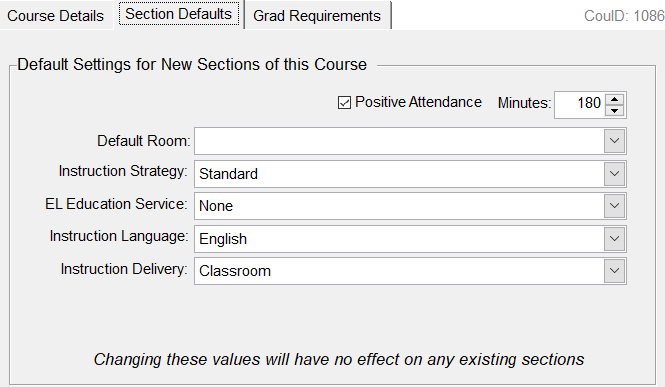
- Create a course for your ‘Expanded Learning Program’ using the Courses form and Courses tab (do not select the ADA Grade Levels tab). Use these Course Details: Grade Range = Not Applicable, Credits = 0, Marking System = None, Course State Code (CBEDS Code) = 6012, and set the Course Term to Full Year (if using the regular ADA calendar track) or ELP Year (if using the alternate ELP 365 day extended calendar track). In the course section defaults tab, enable positive attendance and set the default minutes for the class.
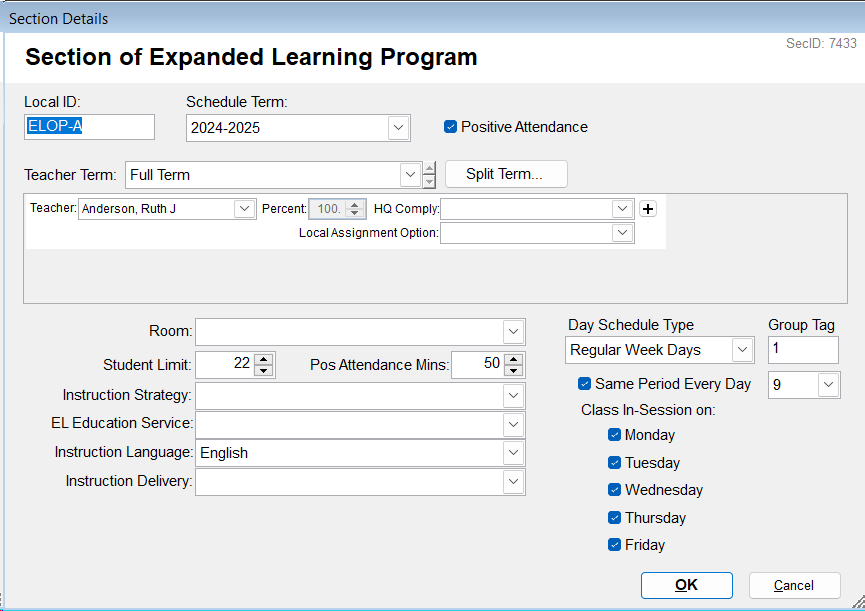
- Create sections as needed. Enable positive attendance and set the default minutes for each section. Set the section Schedule Term to use the regular ADA calendar track (for taking attendance on in-session weekdays only) or the alternate ELP 365 day extended calendar track (for taking attendance on any day enabled in the alternate ELP 365 day extended calendar track). Set the daily class in-session schedule (Mon-Fri is enabled by default). Use Period 9 for these sections. Enroll students in the applicable course section(s).
Option B) Setup ELP attendance time tracking:
- The check-in/check-out time tracking function can be used to record the actual time that a student was present on a specific date. This method is often used for time-based billing purposes. Please contact SchoolWise support to enable check-in/check-out time tracking function in the SchoolWise web attendance forms (this function is not available in the desktop attendance forms). Please provide your default start/end times for each course section. Click here for more information regarding attendance time tracking.
- Create a course for your ‘Expanded Learning Program’ using the Courses form and Courses tab (do not select the ADA Grade Levels tab). Use these Course Details: Grade Range = Not Applicable, Credits = 0, Marking System = None, Course State Code (CBEDS Code) = 6012, and set the Course Term to Full Year (if using the regular ADA calendar track) or ELP Year (if using the alternate ELP 365 day extended calendar track). In the course section defaults tab, enable positive attendance and set the default minutes for the class.
- Create sections as needed. Enable positive attendance and set the section default minutes (full-hour increments). Set the section Schedule Term to use the regular ADA calendar track (for taking attendance on in-session weekdays only) or the alternate ELP 365 day extended calendar track (for taking attendance on any day enabled in the alternate ELP 365 day extended calendar track). Set the daily class in-session schedule (Mon-Fri is enabled by default). Use Period 9 for these sections. Enroll students in the applicable course section(s).
See below for ELP course setup screenshot examples.
Additional SchoolWise Training Resources
- Click here for general information regarding course setup.
- Click here for general information regarding course enrollment.
- Click here for general information regarding attendance recording.
Hourly Attendance Time Tracking
If desired, Teacher Gradebooks can be setup for hourly attendance time tracking (instead of daily attendance) with check-in and check-out times. Contact SchoolWise to enable this function. Please identify the specific course section(s) you want this function enabled for and the default check-in/check-out times. The default check-in/check-out times can be defined for a course section with the same times applied every day; however, these times can be changed as needed on a specific date.
Note: The web foundation module is required to utilize the hourly attendance time tracking function. This functionality is not available in the desktop attendance form.
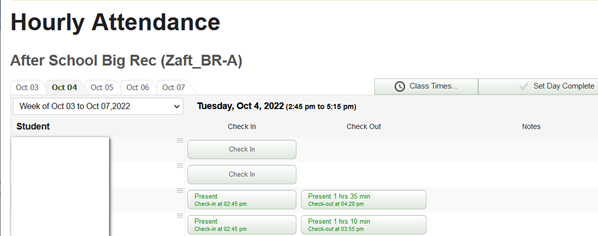
The teacher records the check-in time when each child arrives and the check-out time when each child is picked up. This records the times each child is there and the system calculates the hours.
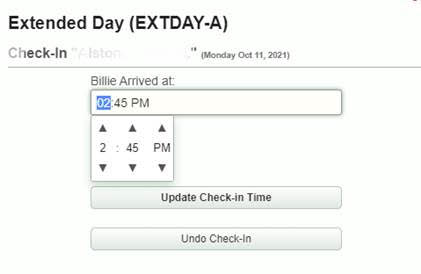
When you click the Check-in button, the default scheduled start time of the class is used, but it can be changed as needed.
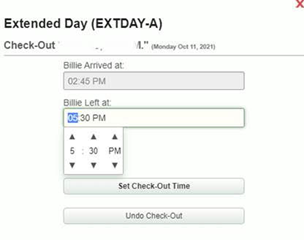
When you click the Check-out button, the current time is used, but it can be changed as needed. Press the button again to specify a different time.
At the end of the day, after everyone is picked up, press the Set Day Complete button.
Clicking on the check-in button produces: | Clicking on the check-out button produces: |
Digital Signature
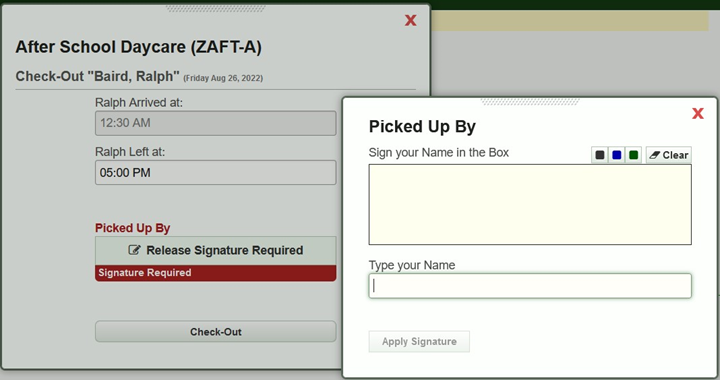
If desired, course rosters can be setup to include a digital signature requirement for student pickup. This feature can be enabled in your web district configuration options. Click here for more information.
Attendance Reports
Web Reports: The following reports can be used to capture positive attendance data for courses that use time tracking (check-in and check-out times):
- After School Positive Attendance Times (For 1 Class)
- After School Positive Attendance Times For 1 Student
- After School Positive Attendance Times Whole School
Desktop Reports (Report Explorer): The following reports can be used to capture positive attendance data for courses that use daily attendance tracking:
- After School Hourly Positive Attendance. This report uses the default class minutes to calculate time, not the actual check-in & check-out times.
- After School Positive Attendance Daily Count.
- After School Positive Attendance Student Count. This report counts days present for each student.
- Hourly Positive Attendance. This report uses the default class minutes to calculate time, not the actual check-in & check-out times.
- Monthly After School Positive Attendance
- Positive Attendance Daily Present Count.
- Positive Attendance Present Count Export
- Positive Attendance Student Present Count. This report counts days present for each student.